
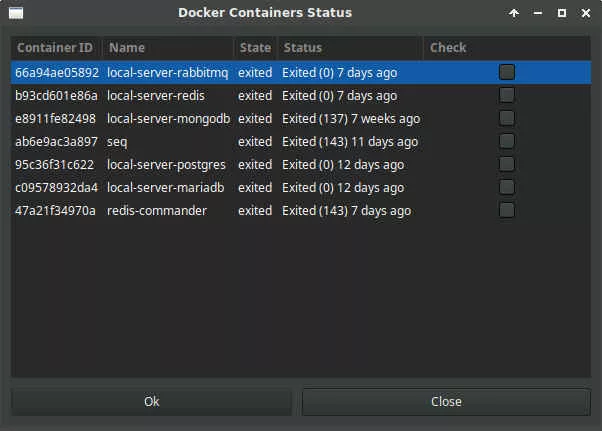
Listen… This quick post will show how I created a GTK application for Linux to control docker using C. This application will feature a tray icon, context menu options, Docker container status integration, and a simple configuration window.
Motivation
Simply put: I could not find a working graphical lightweight and simple application with a tray icon to start/stop docker containers of interest.
What you should have?
- A Linux system with a graphical interface
- GCC (GNU Compiler Collection) installed
- GTK development libraries
- JSON-C library (for parsing JSON)
- Docker installed and running on your system
- Little knowledge in C/C++ programming language
If you are using Ubuntu Linux, these commands are for you:
sudo apt -y update
sudo apt install -y build-essential libgtk-3-dev libappindicator3-dev libjson-c-dev
Not using Ubuntu? You’ll have to adapt the package names. If you are using Windows, I’m sorry you can try to use Cygwin/MinGW.
A pinch of GTK
GTK (GIMP Toolkit) is a popular open-source toolkit for creating graphical user interfaces. GTK 3, in particular, is widely used for building desktop applications on Linux. It provides a wide range of widgets and features, including buttons, menus, text views, and more, making it a versatile choice for developing modern GUI applications. GTK 3 is written in C, but it can also be used with other programming languages, like Python, through language bindings.
With GTK 3, you can create responsive and visually appealing applications that integrate seamlessly with the GNOME and LXDE desktop environments. You can read the GTK 3 development docs at docs.gtk.org
What is Docker?
Check out the post Deploying a Docker Service Stack.
This one is also good to see Set up Datalust Seq in a Docker Container
Setting Up the “Project”
Create a directory for your project:
mkdir dockermonitor
cd dockermonitor
Create the main (and only) source file:
touch dockermonitor.cProject configuration done! Now you can write your code using your favorite IDE.
Creating the Main Window and the Tray Icon
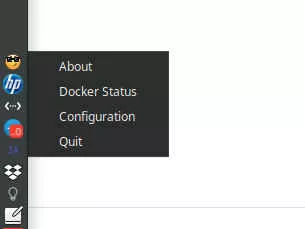
The tray icon is managed using the AppIndicator library. Add the following code to your dockermonitor.c file:
#include <gtk/gtk.h>
#include <pthread.h>
#include <libappindicator/app-indicator.h>
#include <json-c/json.h>
#include <stdlib.h>
#include <stdio.h>
#include <string.h>

int main(int argc, char **argv) {
    gtk_init(&argc, &argv);

    AppIndicator *indicator = app_indicator_new(
        "dockermonitor",
        "face-cool",
        APP_INDICATOR_CATEGORY_APPLICATION_STATUS
    );

    app_indicator_set_status(indicator, APP_INDICATOR_STATUS_ACTIVE);

    GtkWidget *menu = gtk_menu_new();
    GtkWidget *quit_item = gtk_menu_item_new_with_label("Quit");
    g_signal_connect(quit_item, "activate", G_CALLBACK(gtk_main_quit), NULL);
    gtk_menu_shell_append(GTK_MENU_SHELL(menu), quit_item);

    app_indicator_set_menu(indicator, GTK_MENU(menu));
    gtk_widget_show_all(menu);

    gtk_main();
    return 0;
}
Run this command to compile the program:
gcc -o dockermonitor dockermonitor.c `pkg-config --cflags --libs gtk+-3.0 appindicator3-0.1`To run the program type the command below. You should see the tray icon:
./dockermonitorAdding Docker Integration
We’ll fetch the status of running Docker containers and display them in a new window. I’m using the JSON-C library to parse Docker output.
Add the following to your file:
void get_docker_containers() {
    remove_container_all();
    t_container *tc = NULL;
    FILE *fp = popen(cmd_docker_ps, "r");
    if (fp) {
        char buffer[1024];
        while (fgets(buffer, sizeof(buffer), fp)) {
            struct json_object *parsed_json = json_tokener_parse(buffer);
            struct json_object *id, *name, *state, *status;

            json_object_object_get_ex(parsed_json, "ID", &id);
            json_object_object_get_ex(parsed_json, "Name", &name);
            json_object_object_get_ex(parsed_json, "State", &state);
            json_object_object_get_ex(parsed_json, "Status", &status);

            const char *t_id = json_object_get_string(id);
            const char *t_name = json_object_get_string(name);
            const char *t_state = json_object_get_string(state);
            const char *t_status = json_object_get_string(status);

            if(!in_watchlist(t_id) && !in_watchlist(t_name)) {
                json_object_put(parsed_json);
                continue;
            }

            add_container(t_id, t_name, t_state, t_status);

            json_object_put(parsed_json);
        }
        pclose(fp);
    }
}
Add a “Docker Status” item to the context menu:
GtkWidget *docker_status_item = gtk_menu_item_new_with_label("Docker Status");
g_signal_connect(docker_status_item, "activate", G_CALLBACK(fetch_docker_status), NULL);
gtk_menu_shell_append(GTK_MENU_SHELL(menu), docker_status_item);
Adding a Configuration Window
Adding a Configuration Window
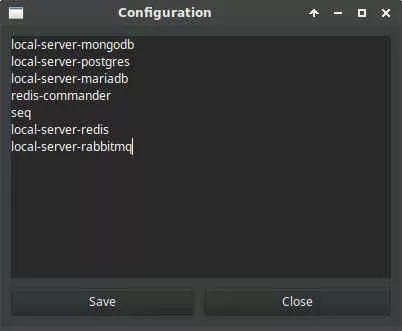
Create a configuration window to manage user-defined settings. Add the following:
void show_configuration_window(GtkWidget *widget, gpointer data) {
    if (!config_window) {
        config_window = gtk_window_new(GTK_WINDOW_TOPLEVEL);
        gtk_window_set_title(GTK_WINDOW(config_window), "Configuration");
        gtk_window_set_default_size(GTK_WINDOW(config_window), 400, 300);
        g_signal_connect(config_window, "destroy", G_CALLBACK(gtk_widget_destroyed), &config_window);

        GtkWidget *vbox = gtk_box_new(GTK_ORIENTATION_VERTICAL, 10);
        gtk_container_set_border_width(GTK_CONTAINER(vbox), 10);
        gtk_container_add(GTK_CONTAINER(config_window), vbox);

        config_text_view = gtk_text_view_new();
        gtk_box_pack_start(GTK_BOX(vbox), config_text_view, TRUE, TRUE, 0);

        GtkWidget *hbox = gtk_box_new(GTK_ORIENTATION_HORIZONTAL, 10);
        gtk_box_pack_start(GTK_BOX(vbox), hbox, FALSE, FALSE, 0);

        GtkWidget *save_button = gtk_button_new_with_label("Save");
        g_signal_connect(save_button, "clicked", G_CALLBACK(save_configuration), NULL);
        gtk_box_pack_start(GTK_BOX(hbox), save_button, TRUE, TRUE, 0);

        GtkWidget *close_button = gtk_button_new_with_label("Close");
        g_signal_connect(close_button, "clicked", G_CALLBACK(gtk_window_close), config_window);
        gtk_box_pack_start(GTK_BOX(hbox), close_button, TRUE, TRUE, 0);
    }

    GtkTextBuffer *buffer = gtk_text_view_get_buffer(GTK_TEXT_VIEW(config_text_view));
    gtk_text_buffer_set_text(buffer, to_watch, -1);

    gtk_widget_show_all(config_window);
}
Add a “Configuration” menu item:
GtkWidget *config_item = gtk_menu_item_new_with_label("Configuration");
    g_signal_connect(config_item, "activate", G_CALLBACK(show_configuration_window), NULL);
    gtk_menu_shell_append(GTK_MENU_SHELL(menu), config_item);
Of course, these codes are simple examples. You’ll have to check my git source to compile and run the working code!!
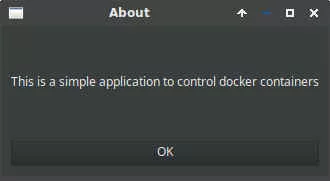
Pictures
Conclusion
This post demonstrated how I created a simple and dirty GTK 3 application that combines user interface elements, system tray functionality, and Docker integration to start and stop specific Docker containers.
This project serves as a starting point for exploring GTK 3, AppIndicator, and JSON-C. As you gain experience, consider expanding the application with additional features like real-time Docker monitoring, customizable notifications, or integrating with other system services.
Get the source: https://github.com/raffsalvetti/dockermonitor
See ya!