

In this post, I share how I built Fossodoro, a minimalist Pomodoro Timer. I explain the design choices, key code snippets, and how I used C and GTK3 to create a floating chronometer that stays on top of your workspace while keeping things light and efficient. Follow me through the development process!
What is Pomodoro Time?

The Pomodoro Technique is a time management method that breaks work into intervals, traditionally 25 minutes in length, separated by short breaks. This technique helps increase focus and productivity by encouraging bursts of concentrated work followed by brief periods of rest. By using a Pomodoro timer, you can track your work sessions and ensure you’re taking the necessary breaks to avoid burnout. Read more at Wikipedia- Pomodoro Technique.
Why a Custom Pomodoro Timer?
While searching for a Pomodoro timer for Linux, I came across gnome-pomodoro, a well-designed application that integrates nicely with the GNOME desktop. However, I wanted something even simpler, a timer with a minimalist chronometer that could float over my windows and offer just the essential functionalities. Inspired by gnome-pomodoro, I decided to build my own lightweight Pomodoro timer using GTK3. My version includes a tray icon with a context menu, a floating always-on-top window with play/pause and stop controls, and a configuration panel to set work/break durations and even volume levels for alert sounds.
The name Fossodoro I made up by merging the term FOSS (Free and Open Source Software) and POMODORO, resulting in FOSSODORO
Project Overview
I tried to follow a modular development pattern in this project by dividing responsibilities into three main components:
Configuration Management:
Loading and saving settings (such as work duration, break intervals, and alert volume) from a configuration file.
Providing a configuration window with GTK3 controls, including text entries and a volume slider.
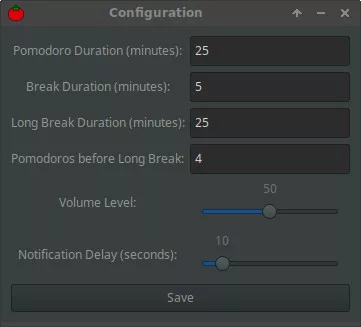
User Interface:
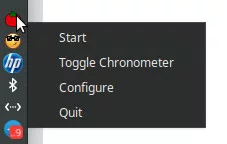
A system tray icon with a right-click context menu.
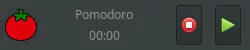
An always-on-top floating window that displays a live countdown and includes image buttons for play/pause and stop functionality.
Custom window dragging functionality since the floating window is undecorated.
Time Management:
A timer callback function that updates the countdown every second, handles session transitions, and triggers notifications and sound alerts when a session ends. Additionally, the tray icon updates according to the remaining Pomodoro timer, as shown in the animation below.

Code Organization and Key Functions
The code is divided into several sections, each responsible for different aspects of the application:
Configuration Management
The application loads and saves settings (like work and break durations, pomodoro count before a long break, and volume level) from a configuration file (pomodoro.cfg). Functions like load_config() and save_config() handles these tasks.
User Interface:
The interface consists of a tray icon and a minimalistic floating window. The tray icon provides a context menu for quick access to start, stop, and configure the timer. The always-on-top floating window shows a live countdown and includes two image buttons for play/pause and stop operations. Although the window has no decorations, it can still be moved by clicking and dragging it, thanks to the custom event handling.
Functions
on_config_save_clicked:
This function is called when the user clicks the Save button in the configuration window. It retrieves values from the entry fields and the volume slider, validates the input, updates the application’s configuration, and saves everything to a file. This makes sure that your custom settings persist between sessions.on_always_on_top_button_press:
Since the always-on-top window is undecorated, there is no title bar or handle by default to move the window. This function listens for left mouse button presses and initiates a drag operation usinggtk_window_begin_move_drag(), allowing you to reposition the floating chronometer on your screen.on_play_pause_button_clicked:
This function toggles the timer’s state. If the timer isn’t running, it starts a new Pomodoro session. If it is running, it either pauses or resumes the timer based on its current state. This makes it easy to control your work sessions with a single button.timer_callback:
Acting as the heart of the application, this function is called every second. It decreases the remaining time, updates the countdown display in the floating window, refreshes the tray icon’s tooltip with the current session’s status, and handles session transitions. When the timer reaches zero, it triggers a sound (with the volume configured by the user) and displays a notification, then switches between work and break sessions appropriately.
Conclusion
Building this minimalist Pomodoro timer was a good experience. It was fun to develop using C and GTK, tools that are both lightweight and powerful enough to get the job done quickly. Not only does the application meet my need for a simple, unobtrusive chronometer that floats over my workspace, but it also deepened my appreciation for open-source development and the flexibility of Linux environments.
I hope this project inspires others to build customized tools that enhance their productivity and fit their unique workflows.
See ya!
Get the source: https://github.com/raffsalvetti/fossodoro
PS: there are some bugs and repeated code blocks but… this is a little something to fix in the future!